

Let’s dig into the details of creating your first Track and what to keep in mind when creating a Private or Paid Track.
To create your first Track:
- Click your Profile icon in the top navigation
- Select View Profile
- Click on Create Track in the search and filter bar.

There are three ways to build a Track. Choose the option that works best for you.
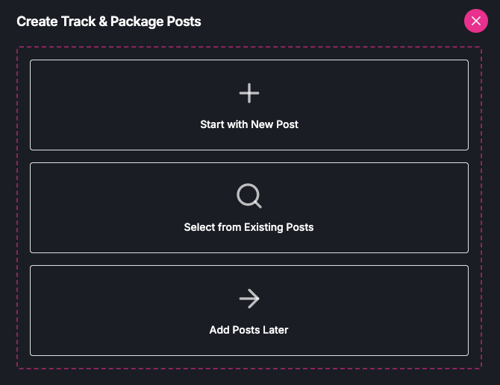
Option 1: Start With a New Post
This option is ideal if you already know what content you want to create first, and you have all your content prepped.
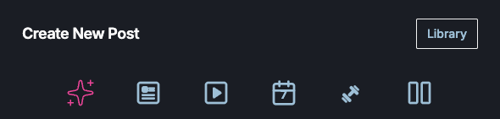
Select Start with New Post, then choose the type of post you want to create:
- Spotlight
- Article
- Episode
- Event
- Guide
- SplitSync
Add:
- A Title - make it short yet descriptive
- A Description - optional but recommended
- Media such as video, audio, or images
At this stage you can save the post as a draft for later by clicking on the Save Draft button, or continue with creating your Track.
To add your newly created post to a Track:
- Select the pink Publish button. This will prompt you to create your Track.
- In the Create Track & Publish Posts dialog box:
- Add the post(s) you wish to add to your Track. Your recently created post will be selected by default.
- Click, Continue with Selected.
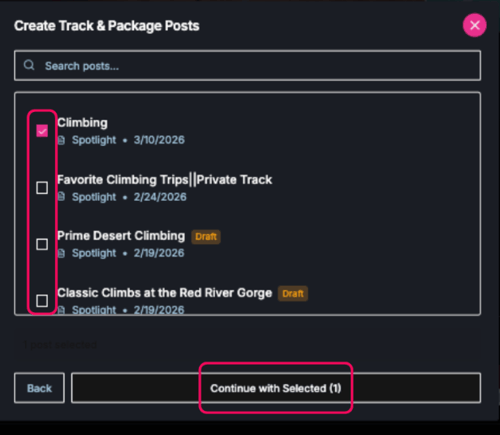
Next you’ll create your Track:
- Add a Track title - make it short yet descriptive
- Write a Track description - include as much or little information as you want. But the more you share the more your fans will know what they get out of your Track.
- Upload a Thumbnail image - pick an image that clearly depicts what your Track is all about. You’ll see previews of how your image will look both in the feed and on your profile. You can zoom or adjust the thumbnail as needed. Remember to click Save
- Select a Track Type - choose whether the Track is Public, Private, or Paid. For Private and Paid Tracks you’ll also decide if you want to enable Group Chats or Direct Messages.
Once everything looks good, click Publish.
Option 2: Create a Track Using Existing Posts
This is often the easiest and most flexible way to build a Track.
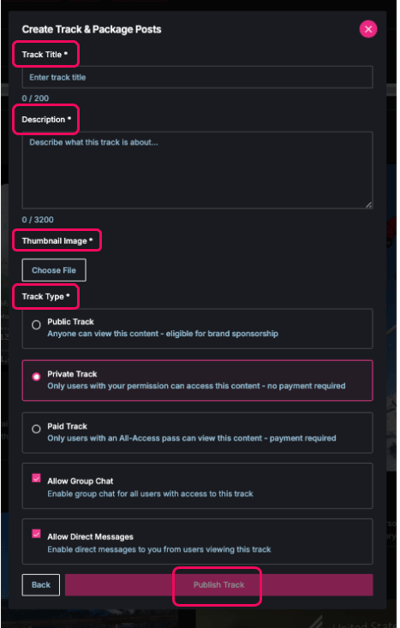
- Choose Select from Existing Posts.
- Pick the content you want to include from your saved drafts or published posts.
- Click Continue with Selected.
Next you’ll continue with the same Track creation steps:
- Add a Track title
- Write a Track description
- Upload a Thumbnail image . Remember to click Save
- Select a Track type
Once everything looks good, click Publish.
Note: If you are taking an existing public Post and adding it to a Private or Paid Track, the Post will no longer be visible as a public Post in Discover or Profile Feeds or in your Profile.
Option 3: Create an Empty Track and Add Content Later
This option is perfect if you want to build a Track first and add content over time.
Select Add Posts Later. You’ll be prompted to create your Track container. Follow the same steps as for Option 1 and 2 to create your Track:
- Select a Track title - make it short yet descriptive.
- Add a Track description - include as much or little information as you want. But the more you share the more your fans will know what they get out of your Track. If your Track features a Group Chat or Direct Messaging, make sure to call that out.
- Upload a Track thumbnail image - pick an image that clearly depicts what your Track is all about. Remember to click Save.
- Choose the Track type - select whether the Track is Public, Private, or Paid. For Private and Paid Tracks you’ll also decide if you want to enable Group Chats or Direct Messages.
To add content to your Track:Note: The empty Track will appear in Discover, Home feeds and on your Profile even before content is added.
- Go to your Profile.
- Select Tracks from the search and filter bar.
- Click the Track thumbnail you want to add content to.
- Choose Edit Track and click into the Content tab.
- Select from your existing, already published or draft content in your Library.
Alternatively you can start a new content post via the + icon in the main navigation and directly save your post to your Track.
Managing Access to Tracks
Tracks display icons that indicate how access works.
Private Tracks
- Displays a lock icon on the thumbnail.
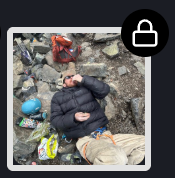
- Requires the owner to approve access requests.
- Access can be granted or removed anytime. You’ll receive a notification and can manage the request directly within the Track.
Paid Tracks
- Users must purchase a day, month, or all-access-pass to view content.
- Displays a dollar icon on the thumbnail.

Turn Your Story Into Something Bigger
Tracks are about more than content, they’re about building meaningful connections. When you package your expertise intentionally and align it with what your fans value, you create something sustainable, sustainable, and uniquely yours.
Ready to start? Create your first Track and invite your community to join and sponsor your journey.
.png?width=900&name=Building%20Athlete-Led%20Communities%20(1920%20x%20800%20px).png)