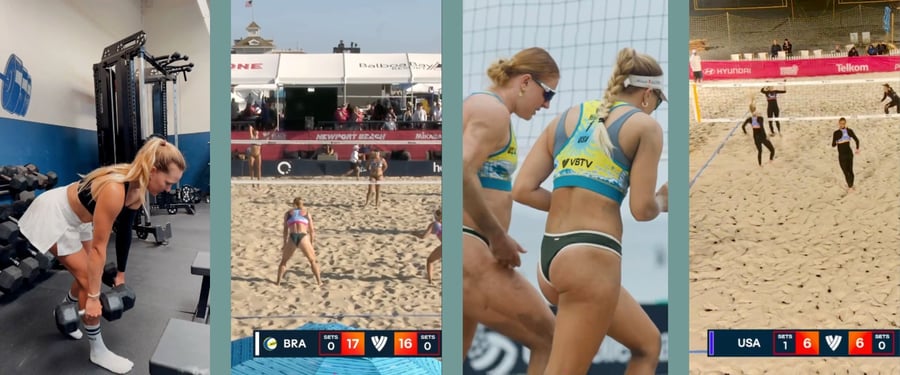
Video Capture Guide and Equipment Recommendations

Creating video-on-demand content—whether workouts, interviews, tips, or Podcasts—is one of the most effective ways to share your expertise and grow your fan base Ontheside. You can start with basic tools you already have and gradually upgrade your setup. The following guide walks you through planning, filming, editing, and publishing your content. We’ve also included recommendations for equipment at different price points.
1. Planning Your VOD or VODcast
Effective content starts with clarity. Before filming, decide what your video will focus on, what your audience cares about, and how you want your personal brand to come across. A bit of prep makes filming smoother and results in more engaging content.
Here are some quick tips for capturing your first episodes.
- Pick a clear theme or series concept that aligns with your audience’s interests.
- Start each video with a quick hook to increase viewer retention.
- Decide whether your style will be a solo vlog or guest conversation.
- Capture your content in 16:9 landscape orientation at 4k resolution for the platform. Make sure to position your key content in the center. This will help you when you crop clips into 9:16 vertical for teasers later.
- Consider simple personal branding—consistent colors, thumbnails, or intros—to make your videos recognizable.
- Batch-film multiple episodes to save time and ensure consistent branding.
2. Filming Your Content
Your recording environment can make a big difference in how your content will show up. Good light, clear sound, and a stable shot go a long way toward making your content feel professional.
Consider the following as you’re selecting your filming spot.
- Film in a bright, relatively quiet space. Use daylight when possible or turn on multiple indoor lights. Make sure to keep backgrounds tidy and visually simple.
- For best sound quality consider investing in a small microphone that you can clip to your clothing. Especially when filming outdoors your microphone will help to tune out background noise.
- Run a couple of quick test recordings to check sound clarity, brightness, and camera framing.
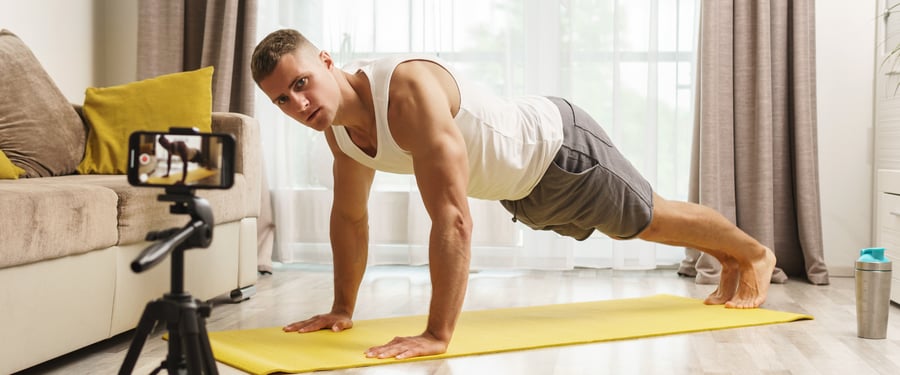
- Keep the camera steady and close enough for clean audio, especially when using a phone. Even a small tripod can go a long way here. For filming movement, like running or skating, we recommend investing in a stabilizer like a gimbal.
- When filming remotely with guests, use earbuds and confirm all participants’ audio levels.
Check out our equipment suggestions below.
3. Editing Your Video
Editing brings your story together. You can adjust pacing, strengthen your message, and add light branding without needing to be an expert. Whether you use your integrated phone editor or an external tool here are some quick tips.
- Remove mistakes, filler words, and off-topic sections. This makes your message clear and keeps content engaging.
- Add simple graphics, captions, intros/outros, and music if it supports the tone.
- Create a 10–30 second teaser clip for Spotlight videos, to share on your social media accounts of choice.
- Make the first 30 seconds of your Watch videos compelling—non-sponsors will see this preview. Make sure to address the topic and why your fans should watch the video clearly.
4. Publishing on Ontheside
Finalizing your upload just takes a couple of steps—outlined here. Follow these Ontheside specific specifications to ensure your video displays correctly and reaches fans effectively.
Let’s review the basics.
- Our recommended duration for episodic Watch videos is between 5–20 minutes (max 45 minutes, max file size 5 GB).
- Upload your content in 16:9 landscape for best results; non-16:9 videos will be automatically letterboxed.
- Titles will automatically load the name of your file. Make sure to adjust it to something that clearly describes your content in less than 40 characters.
- Add a short description that summarizes your video. Note the maximum character count supported is 400 characters.
- By default Ontheside will load a thumbnail image from your content. If you’d like to change that, simply upload an image of your choice.
- Share a direct link to your Watch video from your social media feeds or other platforms. Once your content is published you can access your share link by clicking the arrow icon in your content card.
And there you have it. You’re ready to start your content creator journey Ontheside.
Quick Gear Recommendations to Meet Your Budget
Below is a quick reference guide to help you choose the right equipment for your budget level and goals.
$0 – Use What You Have
- Smartphone or laptop camera
- Natural light (windows/outdoors)
- Built-in microphone on your phone or laptop
- Free video conferencing (e.g., Zoom’s free tier, or Google Meet)
- Free editing apps (CapCut, VEED)
Under $100 – Small Boosts in Quality
- Get a portable phone or camera tripod
- Use earbuds and a basic plug-in mic
- Set up a simple LED light (dimmable preferred)
$100–$500 – Solid Content Creator Setup
- Compact LED lighting kit with adjustable temperature
- Entry-level webcam (Logitech C920s) for laptop recordings
- Basic wireless microphone or upgraded lavalier
- Subscribe to a robust editing platform if needed (CapCut Pro, Adobe Express Premium)
$500–$1,000 – Creator “Level-Up” Tier
- Invest in a GoPro or Insta360 camera for high-resolution and action use
- RØDE Wireless Micro or DJI Mic/Mic 2 for reliable audio
- Larger tripod + mini flexible tripod
- Mid-level LED lighting kit with RGB options
- Adobe Premiere Pro for pro-level editing flexibility
.png?width=900&name=The%20Bigger%20Picture%20(3).png)